Getting started
Overview
Open HelpDesk turns every customer request into a ticket that your team works from one shared inbox. This page maps the product: where you and your customers spend time, the words the interface uses, and the states a ticket passes through.
One workspace per subdomain
Each workspace lives on its own subdomain, for example acme.open-helpdesk.com. The subdomain is what tells the product which workspace you are in: its agents, tickets, contacts and portal are entirely separate from every other workspace on the platform. The slug is fixed when the workspace is created and appears in every address below.
The four surfaces
A workspace is used through four surfaces, each at its own address.
- Agent workspace
- acme.open-helpdesk.com/app
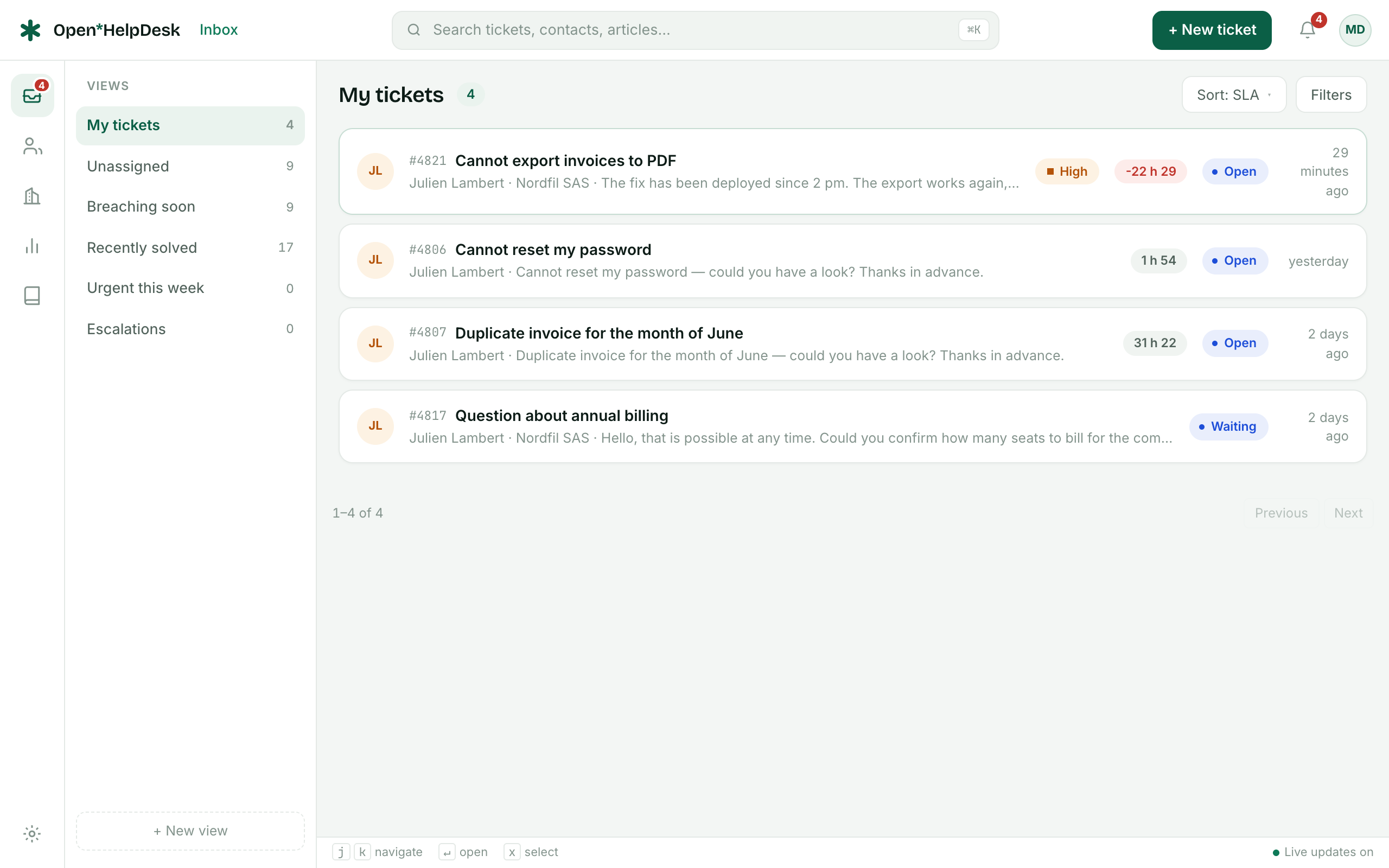
- Where agents work. A left rail of saved views, the ticket list, and the conversation with its reply box, internal notes and side panel. A command palette opens with ⌘K.
- Customer portal
- acme.open-helpdesk.com/help
- The self-service site your customers see: the knowledge base, a search bar, and their own requests once they sign in. Branding and visibility are set in workspace settings.
- Embeddable widget
- a script on your own website
- A “Need help?” panel you drop into your product or marketing site. A visitor writes a message, it becomes a ticket, and every reply reaches them by email.
- Workspace settings
- acme.open-helpdesk.com/app/settings
- The admin area: team and roles, email channel, automations, SLA policies, macros, custom fields, CSAT, the portal, API keys and the audit log. Open to owners and admins only.
Core vocabulary
These words recur throughout the interface and the rest of this documentation.
- Workspace
- One tenant: its agents, tickets, contacts, knowledge base and portal, isolated on a subdomain of its own.
- Ticket
- A single request and everything attached to it — the message thread, internal notes, status, priority, assignee, team, tags and fields.
- View
- A saved filter over the ticket list. A view can be private to you, shared with a team, or visible to everyone. My tickets, Unassigned and Breaching soon are built in.
- Contact
- A person who submits requests — the requester on a ticket. Contacts are identified by email address.
- Organization
- A group of contacts, usually a customer company. Contacts join by email domain, and an organization can let its members see one another's tickets.
- Macro
- A saved set of actions an agent applies to a ticket in one step — a canned reply plus status, tags or assignment. Available to everyone, a team, or just you.
- Trigger / automation
- A conditions-and-actions rule the system runs for you. Triggers fire on an event (a ticket arrives, a reply comes in); scheduled rules run on the clock.
- SLA policy
- A set of response and resolution targets applied to the tickets that match its conditions, measured against business hours.
The ticket lifecycle
Every ticket carries a status. It arrives as New and moves through the following states as the conversation goes on. Agents change the status by hand, and automations can change it too.
- NewJust arrived and not yet picked up. This is the state of every incoming request.
- OpenAn agent is working on it. The customer is waiting for a reply.
- WaitingThe ball is in the customer's court — you have replied and are waiting to hear back. SLA timers pause.
- On holdBlocked on something else — a third party, a fix, an internal answer. SLA timers pause here too.
- SolvedHandled. The customer is told the request is done. A solved ticket closes on its own after four days if nothing more comes in.
- ClosedFinal. A closed ticket is settled; a new reply from the customer opens a fresh ticket.
A ticket also has a priority (low, normal, high, urgent), which feeds SLA targets and sorting, and a channel recording where it came from — email, the portal, the widget or the API.
Where to go next
Get a request flowing end to end in Your first ticket, or set up who can do what in Roles & permissions.