Configuration
Automations
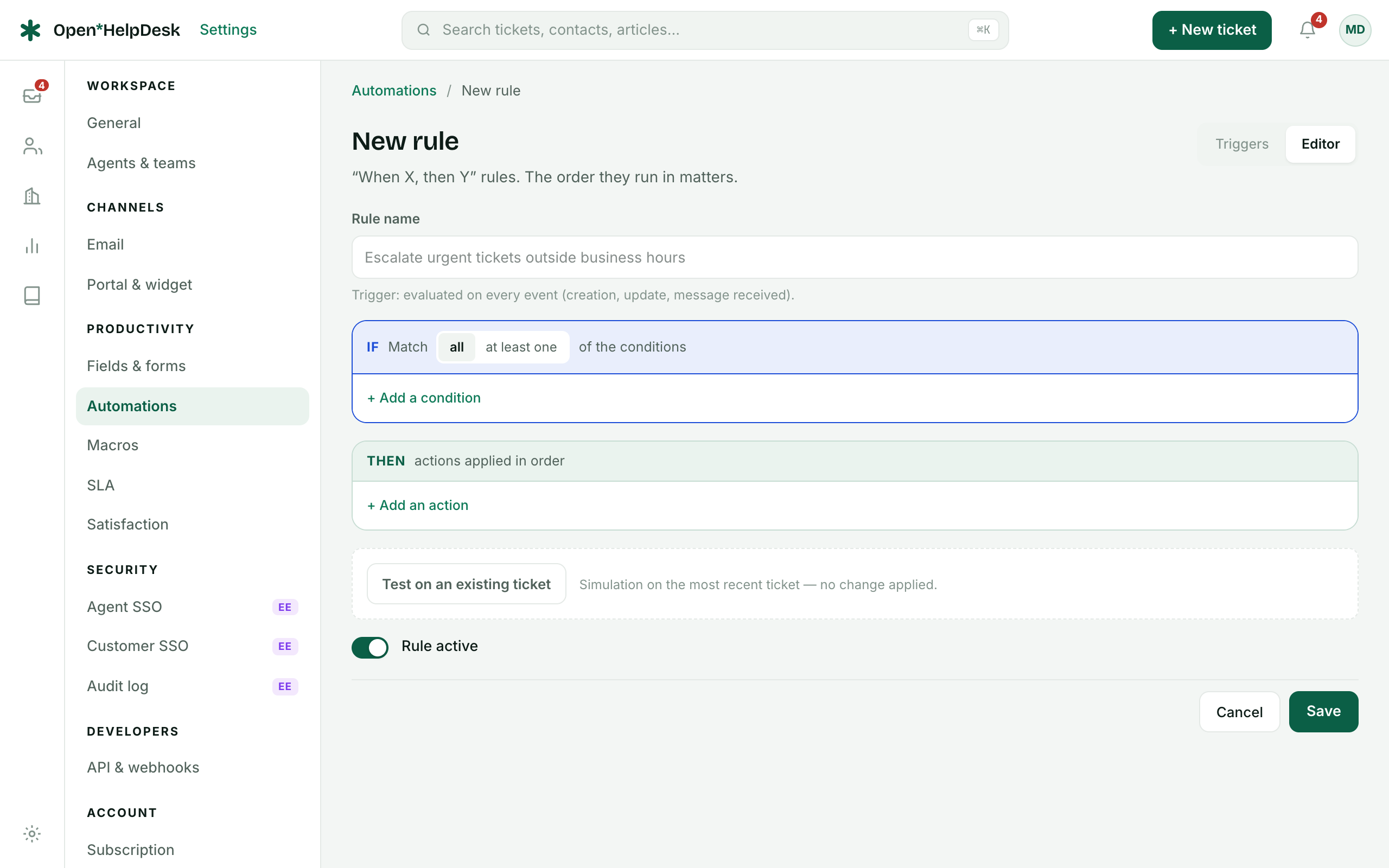
An automation is a “when X, then Y” rule. There are two families — rules that fire on an event, and rules the worker sweeps on a clock — and the order they run in changes the result.
Two families of rules
Trigger rules run the moment something happens to a ticket. Three events fire them: Ticket created, Ticket updated and Message received (a reply from the contact). The rule is evaluated against that single ticket, on the spot.
Scheduled rules are swept by the worker every five minutes across your open and recently-solved tickets. They match on time — the Hours since creation and Hours since update fields — so they are how you chase, escalate or close a ticket that has simply gone quiet.
You pick the family when you create the rule; the editor states which one you are in. Both families live in the same list and share the same conditions and actions.
Conditions and actions
A rule matches when all of its conditions hold (you can also add an “at least one of” group). Conditions read a field with an operator: Status, Priority, Channel, Type, Subject (contains), Tags (includes), Assignee, Team, Organisation, Event, and the two numeric age fields compared with ≥ / ≤.
The actions a rule can apply are fixed:
- Set the status
- Set the priority
- Assign to an agent
- Assign to a team
- Assign to the next agent (round-robin) — the least-loaded active agent on the ticket's team
- Add tags
- Send an email to the contact
The editor has a live Test on an existing ticket: it runs your draft conditions against your most recent ticket and tells you whether the rule would apply and what it would do — without writing anything.
The order rules run in
Rules run top to bottom, in the order shown in the list. On an event, every active trigger rule is evaluated in one pass, and each matching rule applies its actions to the ticket as the rules before it left it — so a rule that sets the priority early is seen by a later rule that reads the priority. Use the up and down arrows to reorder.
When a ticket is created, trigger rules run before the SLA is assigned. A rule that raises the priority therefore changes which SLA target the ticket gets.
Keeping a rule from looping
Within a single event no loop is possible: the engine reads the rule list once, and an action never re-enters the engine. The trap is on the other side — a scheduled rule is re-evaluated over the same tickets every five minutes.
To make a scheduled rule self-terminating, either:
- have the action change a field the condition reads — set the status or the priority so the condition no longer matches next time; or
- pair a “quiet” action (send an email) with one that writes to the ticket (add a tag), so the update touches the ticket and Hours since update resets.
Four rules worth creating
- Assign new tickets fairly — trigger
- IF Event is Ticket created AND Team is not empty → Assign to the next agent (round-robin). Each new ticket lands on the least-loaded agent of its team.
- Tag by keyword — trigger
- IF Event is Ticket created AND Subject contains “invoice” → Add tags billing. Route and report on a topic without anyone reading the subject line.
- Escalate stale tickets — scheduled
- IF Status is Open AND Priority is not High AND Hours since update ≥ 24 → Set the priority to High. Loop-safe: once the ticket is High, “Priority is not High” no longer holds, so it never re-escalates.
- Close solved tickets — scheduled
- IF Status is Solved AND Hours since update ≥ 96 → Set the status to Closed. Loop-safe: a Closed ticket falls out of the sweep.
Read the shorthand as the list summary does: If … → …. In the builder each part is a real dropdown row.
IF   Status         is        Open
AND  Priority       is not    High
AND  Hours since update  ≥     24
→    Set the priority   High