Customer portal
Help center
The help center is your workspace's public front door. Customers search your articles, open requests, and follow them through — signing in with a link, never a password.
What your customers see
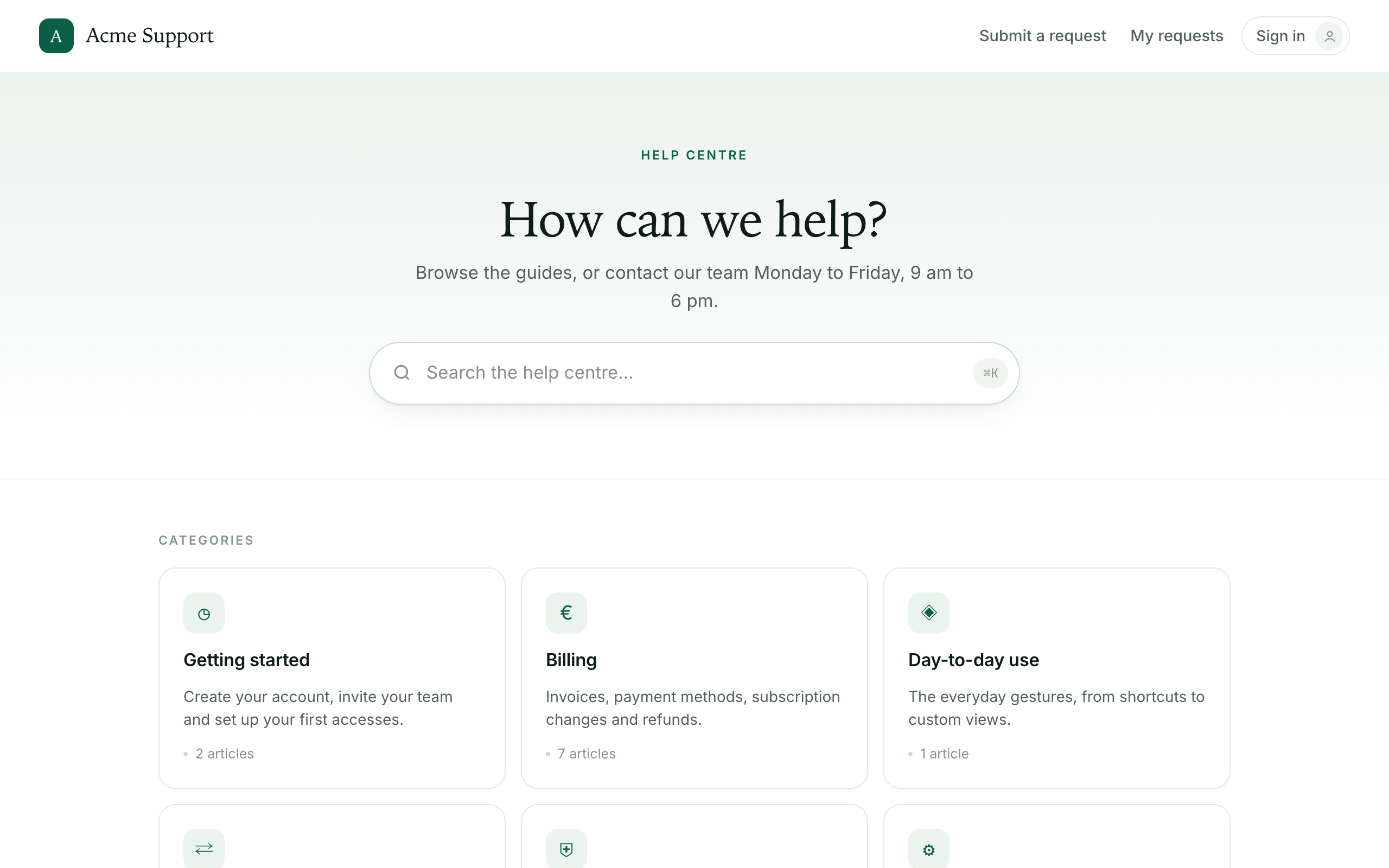
The help center is served at /help on your workspace address, under your name and logo. The home page opens on a headline you can set, a search bar, category cards, a “Most viewed” list, and a contact card that leads to the request form.
The knowledge base drives most of that home page. When it is turned off, or restricted to signed-in customers, the home keeps its headline and its contact card but stops advertising categories and articles that the pages would refuse to open.
Search and article deflection
The hero search suggests answers as the customer types. From the second character it lists up to four matching articles inline; the keyboard shortcut focuses the field, and pressing Enter opens the full results page. When nothing matches, the panel shows a “No results” message with a button to submit a request instead.
Deflection goes one step further on the request form itself. As the customer types the subject, a tinted callout — “These articles may answer your question” — surfaces matching articles, so they can find the answer before the request is filed. That is the point of deflection: catch the question while it is still a question, not once it has become a ticket.
Submitting a request
The request form asks for:
- a request type — Technical support, Billing question, or Feature request;
- an email, shown read-only once the customer is signed in;
- a subject, with live article suggestions as above;
- a related module, when the workspace defines them;
- an urgency — Low, Normal, or High;
- a description, and drag-and-drop attachments.
Sending creates the ticket on the portal channel. On a suspended workspace, customers can still read the help center, but opening new requests is turned off and a banner says so.
Tracking requests
“My requests” groups a customer's requests under Open, Solved, and All tabs. Each row shows the reference number, the subject, a plain-language activity line — “Marie replied 3 h ago”, “Awaiting your reply” — and a colored status badge.
Opening a request shows the full public conversation and a reply box, with a sidebar carrying the status, the creation date, and the reference number. Replying to a resolved or waiting request reopens it. The customer can mark a request solved or reopen it, and — when satisfaction surveys are enabled — rate the resolution once it is solved.
Signing in with a magic link
Sign-in has no password. The customer enters their email and receives a one-time link, valid for fifteen minutes. The account is created automatically the first time — either on first sign-in or with the first request — so “no account yet” is never a blocker.
Someone who submits a request without signing in is emailed the same kind of link, pointed straight at that request. Signing in is what unlocks “My requests” and the request history.
Sharing requests across an organization
Contacts are attached to an organization by their email domain. A contact who holds the organization administrator role gets a “My organization” screen; on its Members tab, the switch “Requests visible to the whole organization” lets every member see their colleagues' requests, not only their own. When it is on, an extra “My organization's requests” tab appears in My requests. Members show up on the list automatically on their first sign-in or first request.