Customer portal
Knowledge base
The knowledge base is the content the help center searches, suggests, and deflects with. You write it in a visual editor, and only what you publish becomes public.
How it is organized
The knowledge base is a two-level tree. A category can hold articles directly, or group them into sections — a section is simply a child category. On the portal, the home lists categories as cards; a category page shows one accordion per section, each listing its articles with a short excerpt, next to an “Other categories” sidebar.
An article page renders the body with an “On this page” table of contents built from its headings, an estimated reading time, a list of related articles, and a “Did this article help you?” vote — where a thumbs-down offers to open a request pre-filled with the article's subject.
Draft and published
Every article is either a draft or published. Only published articles are public: they appear on the portal, in search, in the typeahead and deflection suggestions, and in “Most viewed”. A draft is private — it shows up nowhere on the portal, and agents who are not Owner or Admin do not see it in the agent workspace either.
Writing a useful article
The editor is visual: you apply formatting and see the result. It offers headings and subheadings, bold and italic, bulleted and numbered lists, a callout, inline code, code blocks, links, and images. Strikethrough, underline, and horizontal rules are deliberately absent — the portal does not render them, so they would be lost on publication. The right rail carries the Draft and Publish buttons, the article's URL (its slug), an optional SEO title, its category, and a short history. A new article can start from a template — a step-by-step procedure or an incident write-up — or from a blank page, and a resolved ticket can be turned into a first draft.
A few habits make an article pull its weight:
- Title it as the question a customer would type — “How do I reset my password?”. Deflection matches what they write in the subject against your titles, so a question-shaped title is the one that surfaces.
- Put the answer first, then the detail.
- Keep one article to one problem; link out rather than covering everything.
- Set the SEO title when the on-page title is too long for a search-engine result.
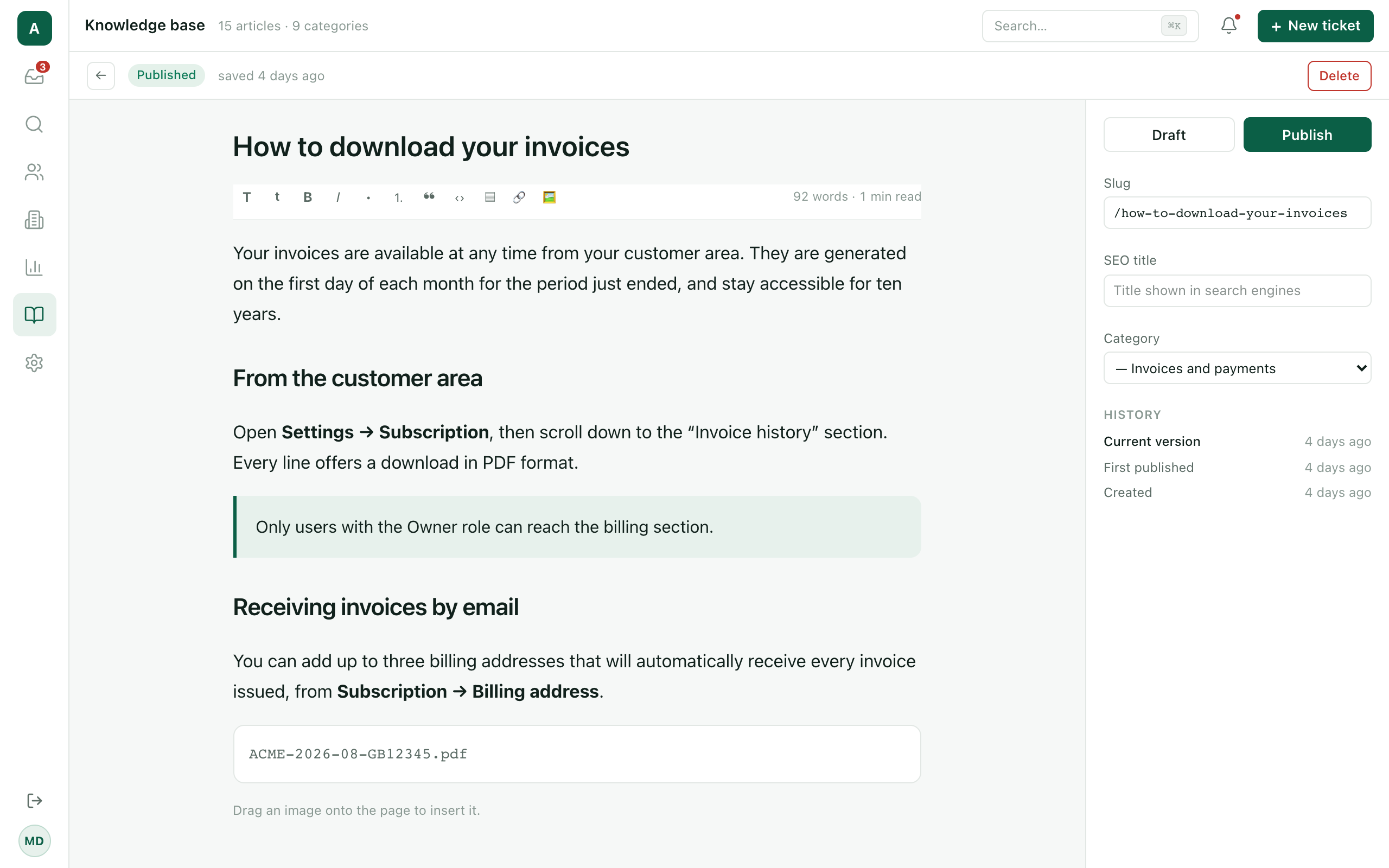
Adding images
In the editor, drag an image onto the page or use the image button; it uploads and is inserted inline, just after the current block. The accepted formats are PNG, JPEG, GIF, WebP, and SVG, up to 10 MB each. Uploading is part of writing, so it is limited to the same roles as the editor.
Who can write
Reading the knowledge base is open to the whole team — agents quote articles in their replies. But creating, renaming, and deleting categories, and writing, publishing, and deleting articles, are restricted to the Owner and Admin roles. The commands simply do not appear for other agents, and every action re-checks the role on the server. In the agent article list, a non-manager sees published articles only, and draft rows do not open.