Agent workspace
Inbox & views
The inbox is where every ticket lands. Each row tells you the state of a request at a glance, views slice the queue down to what needs you now, and the whole screen answers to the keyboard.
Reading a row
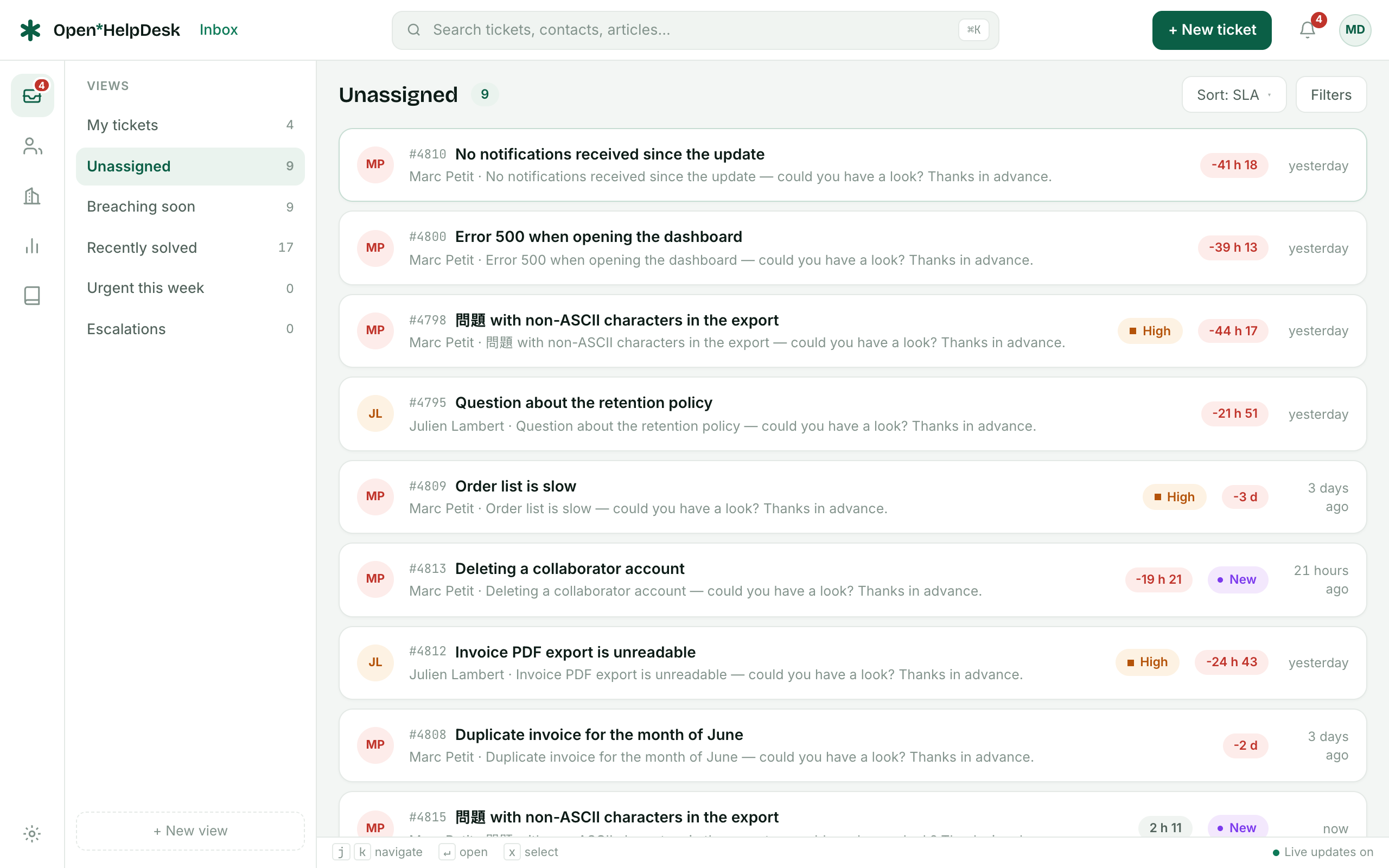
A row is a single ticket, laid out on a fixed grid so your eye lands in the same place every time. From left to right:
- The avatar of the contact, in a colour of their own — the same person keeps the same one down the whole list. There is no checkbox at rest: press x to select a row, and the bulk bar appears when something is selected.
- The ticket number and subject, with a one-line excerpt of the latest message underneath.
- The contact who wrote in, with their organisation below when there is one.
- The priority, named — but only when it is High or Urgent. Those are the two levels that ask you to decide something; Normal and Low say nothing, which is what makes the badge worth seeing.
- The SLA badge — the time left on the next deadline. It is neutral by default, turns amber under thirty minutes, and red once the deadline has passed. It only appears while the ticket is still open.
- The status chip (Open, Waiting, On hold, Solved, Closed). A ticket nobody has touched shows New for its first twenty-four hours and then stops saying so: after a day that is no longer news, and the SLA badge is what speaks. The status itself does not change — only the row stops repeating it.
- The time of the last activity, on the right.
Views
The left rail holds six built-in views, each with its own dot and a live count. The active view is stored in the URL, so a view is a link you can bookmark or share:
/app/tickets?view=unassigned- My tickets (
view=mine) — open tickets assigned to you. This is where the inbox opens. - Unassigned (
view=unassigned) — open tickets with no owner, waiting to be picked up. - Breaching soon (
view=breaching) — open tickets whose first-reply or resolution deadline has passed or is less than thirty minutes away. - Recently solved (
view=resolved) — tickets solved in the last seven days. - Urgent this week (
view=urgent) — open tickets at urgent priority created in the last seven days. - Escalations (
view=escalation) — open tickets routed to the Escalation team.
Shared team views appear below the built-in ones and carry a ?tv= identifier instead. Whatever view you are in, the filter bar at the top narrows it further by Status, Priority and Assignee, and the sort control orders the list by priority (the default) or by most recent activity. The list pages fifty tickets at a time.
Bulk actions
Tick the checkbox on one or more rows — or press x on the row under the cursor — and a floating bar appears at the bottom of the screen. From it you can reassign the selection, change its status or priority, add a tag, or delete the selected tickets. The change applies to every selected ticket at once.
Keyboard and the ⌘K palette
The inbox is built to be driven without the mouse. j and k move the cursor down and up, ↵ opens the ticket under the cursor, and x toggles its selection. The footer keeps these hints in view.
⌘K (or Ctrl+K) opens the command palette from anywhere. Type at least two characters and it searches, side by side, across:
- tickets — by subject, or by number: type a figure (or
#4821) to jump straight to a ticket; - knowledge-base articles, by title;
- contacts, by name or email;
- organisations, by name.
The palette also offers quick actions such as creating a new ticket. Use ↑ ↓ to move through the results, ↵ to open the highlighted one, and Esc to close. Opening a ticket drops you into the full conversation — see handling a ticket.