Configuration
Email channel
Email is where a help desk breaks most often. Set it up in order: first make mail come in, then make your replies go out authenticated, then confirm both end to end.
Receiving email
Open Settings → Email, on the Receiving tab. There are three ways to get customer email into the workspace, and each address can route to a default team and a specific ticket form.
- Provided address
- Every workspace has a ready-made address, support@your-workspace.<mail-domain>, created on the first send and always Verified. It cannot be deleted. Point customers straight at it, or forward your own address to it.
- Forwarding your own address
- Add your real address with the “Forwarding to the provided address” method, then set up the redirection at your email provider so it forwards to the provided address. It stays Pending until the first message comes through — the first email received flips it to Verified.
- IMAP
- Connect an existing mailbox by host, port (993 with implicit TLS by default), username, and password. The workspace checks the mailbox every minute, turns unread messages into tickets, and marks them read. The “Test” button opens a live connection; the status moves from To test to Connected, or to Error with the reason.
If your domain is already managed by Brevo or Mailjet, their inbound webhook can turn incoming email into tickets with no forwarding and no IMAP — copy the webhook URL shown on the same tab into the provider.
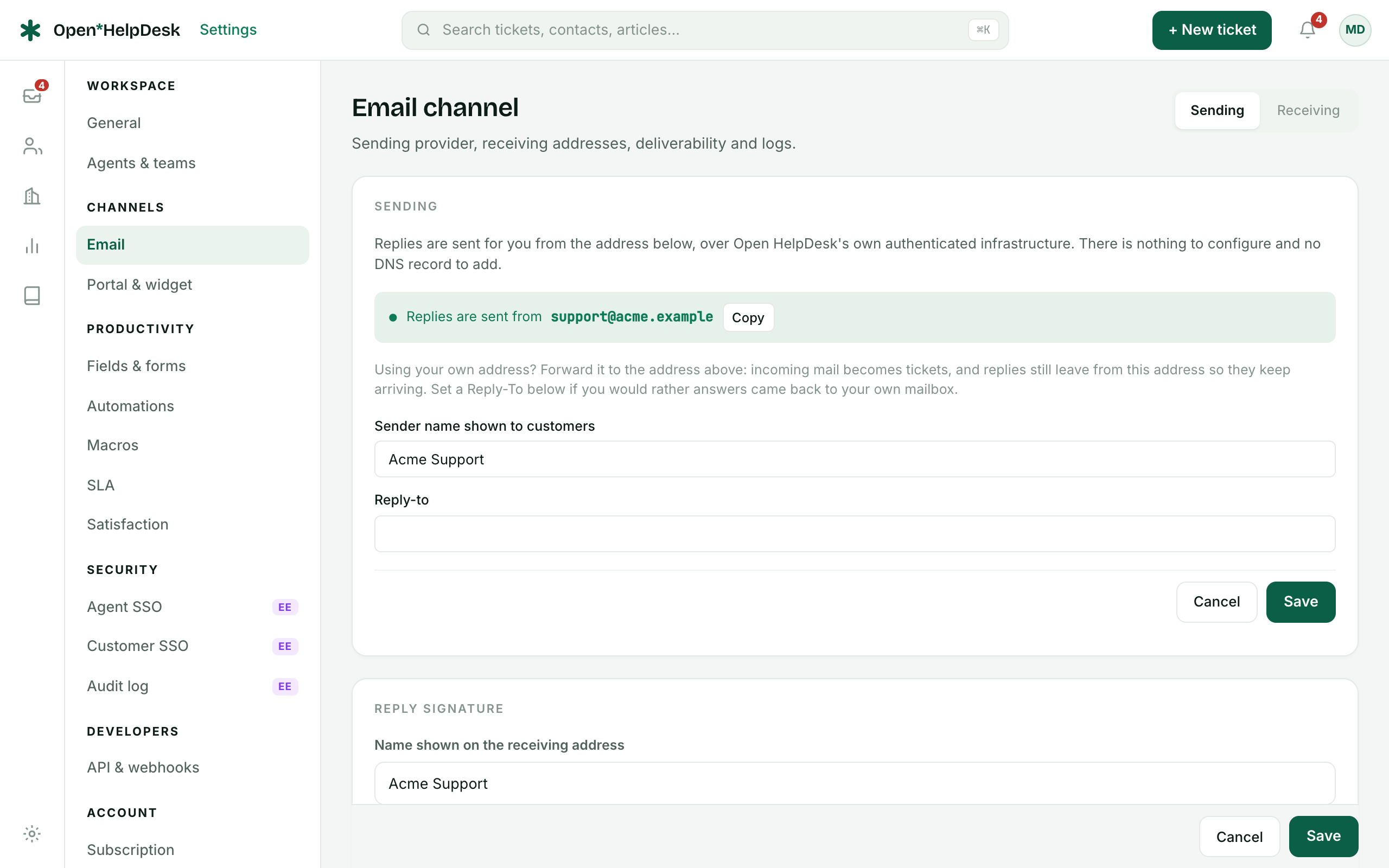
Your sending identity
On the Sending tab you set who your replies come from. The reply signature card has two fields: the sender name shown on the receiving address — for example “Acme Support” — and a global signature appended to replies. A banner tells you whether sending uses your workspace's own provider, the instance's provider, or the built-in default.
You choose a provider (SMTP, Resend, Brevo, Mailjet, or the console for local development) and set the from name, from address, and reply-to. “Test connection” checks the configuration without sending; “Send a test” emails the signed-in agent and shows up in the send log.
Authenticate your sending domain
So your replies are not filed as junk, publish three DNS records for your sending domain. The settings page generates them for your domain and provider, each with a status: At the provider when the exact value has to be copied from your provider's dashboard, and To publish when you add it to your own DNS zone.
- SPF
- One TXT record per domain. Merge the provider's include into your existing SPF rather than adding a second record.
- DKIM
- A CNAME (a TXT record for Brevo). The value comes from your provider's sending-domain settings, not from Open HelpDesk.
- DMARC
- A TXT record. Start at p=none to observe the reports, then move to quarantine once SPF and DKIM are aligned.
# Example records for a Resend sending domain (acme.com)
SPF    TXT    @                v=spf1 include:amazonses.com ~all
DKIM   CNAME  ohd._domainkey   <value supplied by your provider>
DMARC  TXT    _dmarc           v=DMARC1; p=none; rua=mailto:dmarc@acme.com
When email is not arriving
Work down this list, top to bottom.
- Check the address status. A forwarding address still marked Pending means nothing has reached the provided address yet — the first message that lands flips it to Verified. If it never flips, the forwarding is not actually reaching the exact provided address.
- Re-check the forwarding target. It must be the provided address, character for character, and the redirection must be switched on at your provider.
- Check MX / DNS. Mail sent to an address that does not resolve is simply never delivered.
- Read the Rejected emails log (Receiving tab, kept 30 days). Some messages are dropped on purpose and recorded there instead of becoming tickets: loops (a message from one of the workspace's own addresses), automatic bounces (mailer-daemon, delivery-status reports, an Auto-Submitted header), out-of-office auto-replies (X-Autoreply and similar headers), provider spam verdicts, and empty messages. Our acknowledgement and a correspondent's autoresponder would otherwise answer each other forever — that loop is cut here by design.
- For replies that fail to go out, the “Recent sends” log shows each email's status — sent, queued, or failed.
Once mail flows both ways, walk through a first ticket end to end in the help center to confirm the round trip.